Quick answer: to add a signature in Outlook:
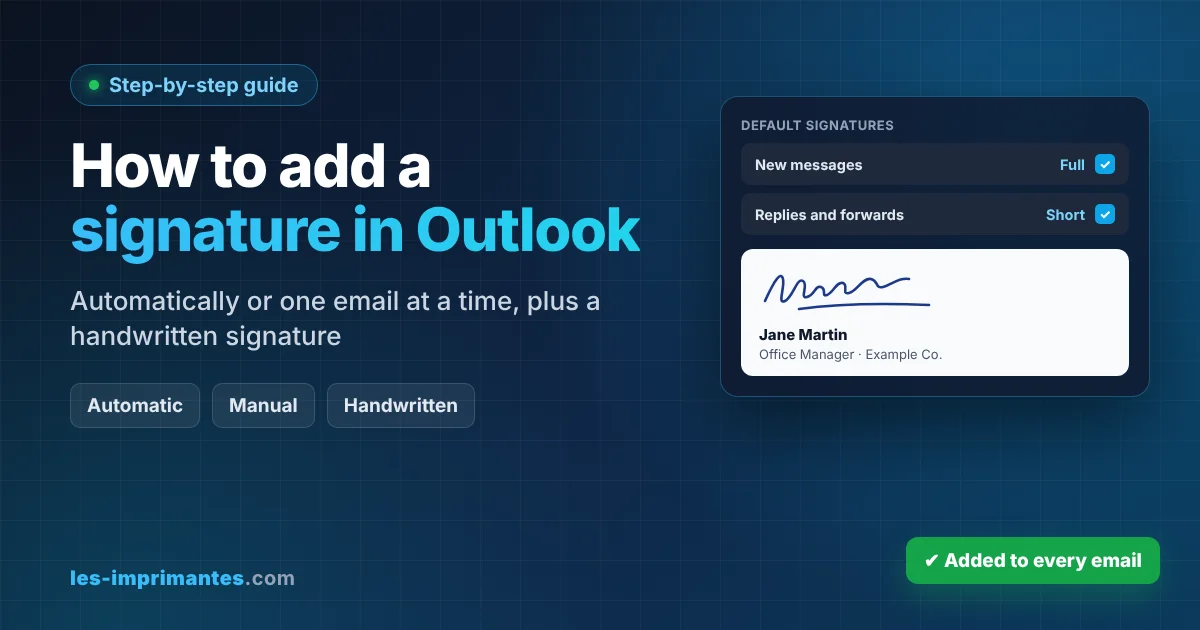
- Automatically to every email: Settings (gear) › Accounts › Signatures, then tick the boxes for new messages and replies and forwards, and Save.
- To one email only: in a new message, open the Message tab › Signature and pick your signature.
- Classic Outlook: Message › Signature › Signatures, then set it under Choose default signature.
Don’t have a signature yet? Follow our guide to create an email signature in Outlook first.
Sommaire
- Automatic or manual: which way to add it?
- Add a signature automatically (new Outlook and Outlook on the web)
- Add a signature to one email manually
- New Outlook and Outlook on the web
- Classic Outlook
- Add a signature automatically in classic Outlook
- Add a handwritten signature in Outlook
- Add a logo or photo
- Add a signature on other devices
- Signature not added? Fixes
- Related guides on les-imprimantes.com
- Frequently asked questions
- Sources and methodology
Automatic or manual: which way to add it?
| Method | When to use it | Effort |
|---|---|---|
| Automatic in new messages | You always sign the same way | Set once |
| Automatic in replies and forwards | Professional email, every reply should be signed | Set once |
| Manual, per message | Several signatures (full, short, personal), or you sign only some emails | One click per email |
Common setup: full signature for new messages, short one-line signature for replies.
Add a signature automatically (new Outlook and Outlook on the web)
- Select Settings (gear icon) › Accounts › Signatures.
- If you have several accounts, choose the account.
- Select your signature (or create one with Add signature).
- Below the editor, tick the option for new messages and/or replies and forwards, and choose which signature each one uses.
- Select Save. Open a new email to check.
Source: Microsoft Support – How to add and change an email signature in Outlook.
Add a signature to one email manually
New Outlook and Outlook on the web
- Select New mail (or reply to an email).
- Click where you want the signature in the message.
- On the Message tab, in the Insert group, select Signature and choose the one you want.
Classic Outlook
- Open a new message or a reply.
- On the Message tab, select Signature and pick your signature from the list.
Tip: inserting a different signature replaces the one already in the message, so you can switch from your full signature to your short one in one click.
Add a signature automatically in classic Outlook
- Open a new message, then select Message › Signature › Signatures (or File › Options › Mail › Signatures).
- Under Choose default signature, select the E-mail account.
- Choose a signature for New messages and one for Replies/forwards.
- Select OK.
Source: Microsoft Support – Create an email signature in Outlook.
Add a handwritten signature in Outlook
Microsoft notes that a signature can include pictures, such as your handwritten signature or a logo. To add yours:
- Sign on a sheet of white paper with a dark pen.
- Scan it, or take a well-lit photo with your phone.
- Crop the image tightly around the signature and save it as PNG or JPG, about 200 to 300 pixels wide.
- Open your signature in Outlook’s signature editor and use the image button to insert the file.
- Add your name as normal text below it, then Save.
Security tip: an image of your handwritten signature can be copied by anyone who receives your email. Avoid it on emails to unknown recipients, and don’t use it as a legal electronic signature for contracts.
Add a logo or photo
- Use a small file (about 300 pixels wide at most) so emails stay light.
- Keep your name, phone and website as text, not inside the image: some email apps block images.
- To change it later: edit the signature, select the image and replace it.
Add a signature on other devices
| Device | Where to add it | Good to know |
|---|---|---|
| Outlook mobile (iPhone, Android) | Profile picture › Settings › Signature | Separate from the PC signature; text only |
| Outlook for Mac | Outlook › Settings › Signatures | Choose defaults per account |
| Outlook on the web / Outlook.com | Settings › Accounts › Signatures | Same steps as the new Outlook |
Menu names can vary slightly between versions.
Signature not added? Fixes
| Problem | Likely cause | Fix |
|---|---|---|
| No signature in new emails | Default not set | Tick the new messages option, or set Choose default signature (classic) |
| No signature in replies | Replies and forwards not set | Set a signature for replies and forwards |
| Wrong signature for an account | Defaults are per account | Select the right account before setting the default |
| Signature missing after switching to new Outlook | Settings not carried over | Add it again in Settings › Accounts › Signatures |
| Missing on phone | Mobile signature is separate | Set it in the Outlook app settings |
| Image not visible to recipients | Blocked images or large file | Smaller image; keep contact details as text |
| Signature button greyed out | Cursor not in the message body, or organization policy | Click in the message body; on a work PC, ask IT |
🛠️ Real-world case: replies went out unsigned
| Situation | Sales assistant in a small company; new emails were signed, but replies to clients weren’t |
|---|---|
| Cause | Only the “new messages” default was set; “replies and forwards” was empty |
| Fix | A short one-line signature created and set for replies and forwards; full signature kept for new messages |
| Time | About 3 minutes |
Takeaway: Outlook treats new messages and replies separately. Check both defaults.
Related guides on les-imprimantes.com
- Create an email signature in Outlook (all versions)
- Change default apps in Windows (make Outlook your default email app)
- All our Windows guides
- Uninstall a program (in French)
Frequently asked questions
How do I add a signature in Outlook automatically?
Go to Settings › Accounts › Signatures, select your signature and tick the options for new messages and for replies and forwards, then Save. In classic Outlook, use Choose default signature.
How do I add a signature to just one email?
In the message, open the Message tab and select Signature, then choose the signature you want.
How do I add a handwritten signature in Outlook?
Sign on paper, scan or photograph it, crop it and save it as PNG or JPG, then insert the image in Outlook’s signature editor and save.
Why isn’t my signature added to replies?
Outlook sets defaults separately for new messages and for replies and forwards. Set a signature for replies too.
How do I add a signature in Outlook on my phone?
In the Outlook app, tap your profile picture, then Settings and Signature, and type your signature.
Can I add different signatures to different accounts?
Yes. Choose the account in the Signatures settings before setting its default signatures.
What’s the difference between creating and adding a signature?
Creating means writing and saving the signature in Outlook’s settings. Adding means inserting it into emails, automatically or manually. Our create guide covers the first step in detail.
Sources and methodology
- Microsoft Support – How to add and change an email signature in Outlook
- Microsoft Support – Create an email signature in Outlook
- Methodology: steps checked in the new Outlook for Windows, classic Outlook ([version]), Outlook on the web and Outlook mobile ([iPhone/Android]), on [test date].